A VPN hides your IP from websites, but your VPN provider still sees everything. For anonymity, where no single entity can see both who you are and what you’re doing, you need Tor.
Tor (The Onion Router) routes your traffic through multiple volunteer-operated relays. Each relay only knows the relay before it and the one after it, so no single point sees the whole path.
This week, you’ll understand how Tor works, install Tor Browser, and learn when to use Tor versus your VPN.
Understanding Tor
How Tor Works
Tor routes your traffic through three relays:
You → Guard → Middle → Exit → Website
Guard (Entry) Relay:
- Knows your real IP
- Doesn’t know your destination
- You use the same guard for ~2-3 months (protects against timing attacks)
Middle Relay:
- Only knows the guard and exit
- Doesn’t know your IP or destination
- Provides separation between entry and exit
Exit Relay:
- Knows the destination website
- Doesn’t know your real IP
- Sees unencrypted traffic (if not HTTPS)
No single relay knows both who you are AND what you’re doing.
Onion Routing
Your traffic is encrypted in layers, like an onion:
- You encrypt for Exit relay (innermost)
- You encrypt for Middle relay
- You encrypt for Guard relay (outermost)
Each relay peels one layer:
- Guard sees: encrypted blob + next hop
- Middle sees: encrypted blob + next hop
- Exit sees: your actual request + destination
This is why it’s called “The Onion Router.”
Tor vs VPN
| Feature | VPN | Tor |
|---|---|---|
| Speed | Fast | Very slow |
| Trust required | VPN provider | No single entity |
| IP hidden from | Websites | Websites and the middle/exit relays (the entry guard still sees it) |
| Daily browsing | ✅ Suitable | ❌ Too slow |
| Anonymity | Pseudonymous | Anonymous |
| Cost | $5-10/month | Free |
| Blocked by sites | Rarely | Often |
Key difference: With a VPN, you trust your provider. With Tor, you don’t need to trust anyone.
When to Use Tor
Use Tor for:
- Sensitive research (journalism, activism, whistleblowing)
- Accessing .onion sites
- When you can’t trust any VPN provider
- Maximum anonymity requirements
- Circumventing censorship in hostile countries
Don’t use Tor for:
- Daily browsing (too slow)
- Logging into personal accounts (de-anonymizes you)
- Torrenting (overwhelms the network, not anonymous)
- Streaming video (too slow)
Part 1: Tor’s Threat Model
What Tor Protects Against
Tor protects against:
- ✅ Websites knowing your IP
- ✅ Your ISP knowing what sites you visit
- ✅ Any single entity seeing the full picture
- ✅ Basic traffic analysis
Tor does NOT protect against:
- ❌ Global adversaries (NSA-level) doing traffic correlation
- ❌ You logging into personal accounts
- ❌ Malicious exit relays (use HTTPS!)
- ❌ Browser fingerprinting (mitigated by Tor Browser)
- ❌ JavaScript exploits (keep security level high)
Understanding Exit Relay Risks
Exit relays see your unencrypted traffic. A malicious exit could:
- Read HTTP traffic (not HTTPS)
- Modify unencrypted downloads
- Inject malicious content
Protection: Always use HTTPS. Tor Browser enables HTTPS-Only mode by default.
Traffic Correlation Attacks
A well-resourced adversary watching both your connection to Tor AND the website’s connection FROM Tor could correlate timing to identify you.
This requires:
- Monitoring ISP-level traffic globally
- Sophisticated timing analysis
- Significant resources
Practical concern level: Low for most users, high for those facing nation-state adversaries.
Part 2: Installing Tor Browser
The Tor Browser is a hardened Firefox specifically configured for Tor. Never use regular Firefox with Tor—it leaks data.
Install via Package Manager
sudo apt update
sudo apt install torbrowser-launcher -y
Then launch:
- Menu → Internet → Tor Browser
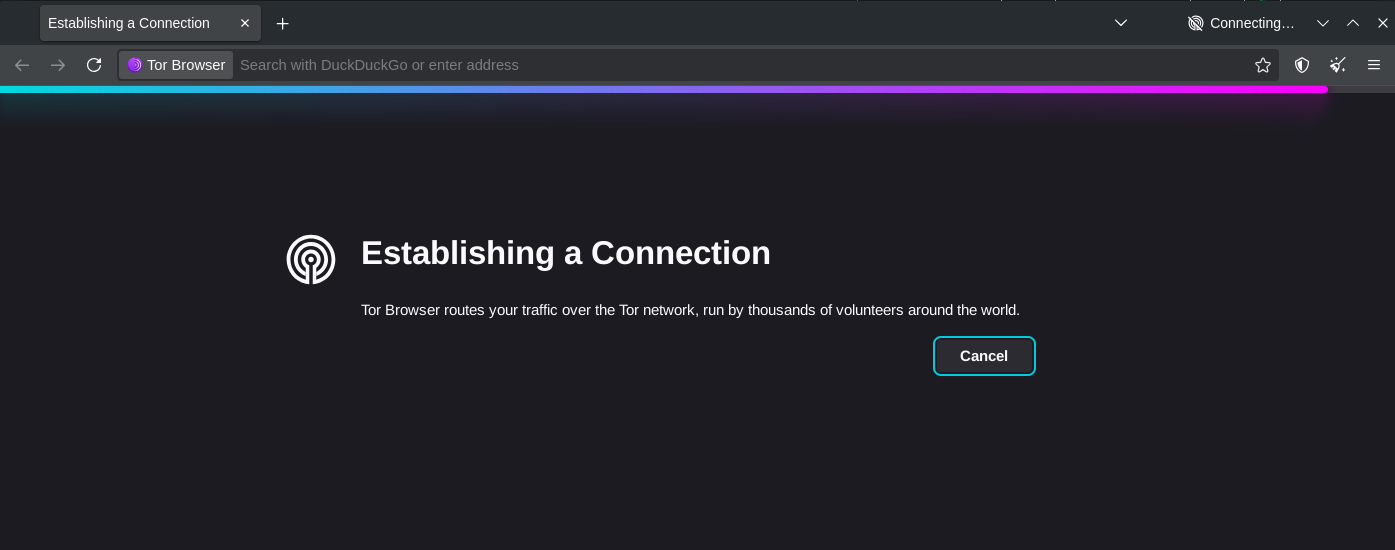
- First launch downloads and verifies Tor Browser automatically
- Click Connect
Manual Installation (Alternative)
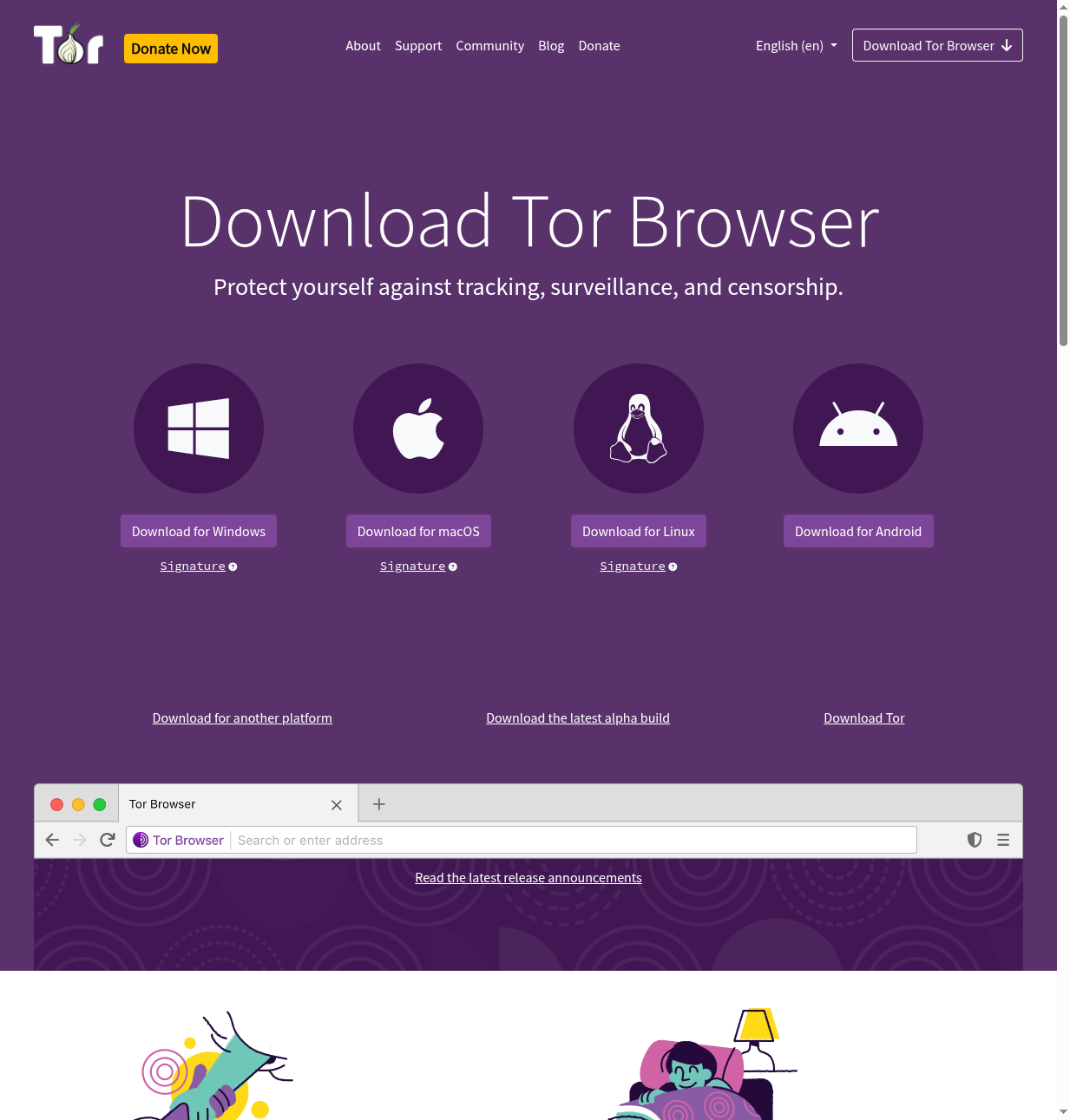
Download Linux version
Verify the signature (important!):
Save the .asc signature file from the download page in the same folder as the .tar.xz, then run the two commands below from that folder. The first fetches the Tor Project’s signing key, the second checks your download against it, and a “Good signature” line means the file is genuine. You can skip this if you installed with the package manager above, since the launcher verifies the download for you.
# Download the signature file (.asc) alongside the tar.xz
gpg --auto-key-locate nodefault,wkd --locate-keys [email protected]
gpg --verify tor-browser-linux-x86_64-*.tar.xz.asc
Extract:
tar -xf tor-browser-linux-x86_64-*.tar.xzRun:
cd tor-browser && ./start-tor-browser.desktop(add--register-apponce if you want it in your app menu)
First Launch
- Tor Browser opens and connects to Tor network
- You’ll see an onion icon in the URL bar
- To confirm you are on Tor, visit check.torproject.org (see Verify Connection below)
Verify Connection
Check that Tor is working:
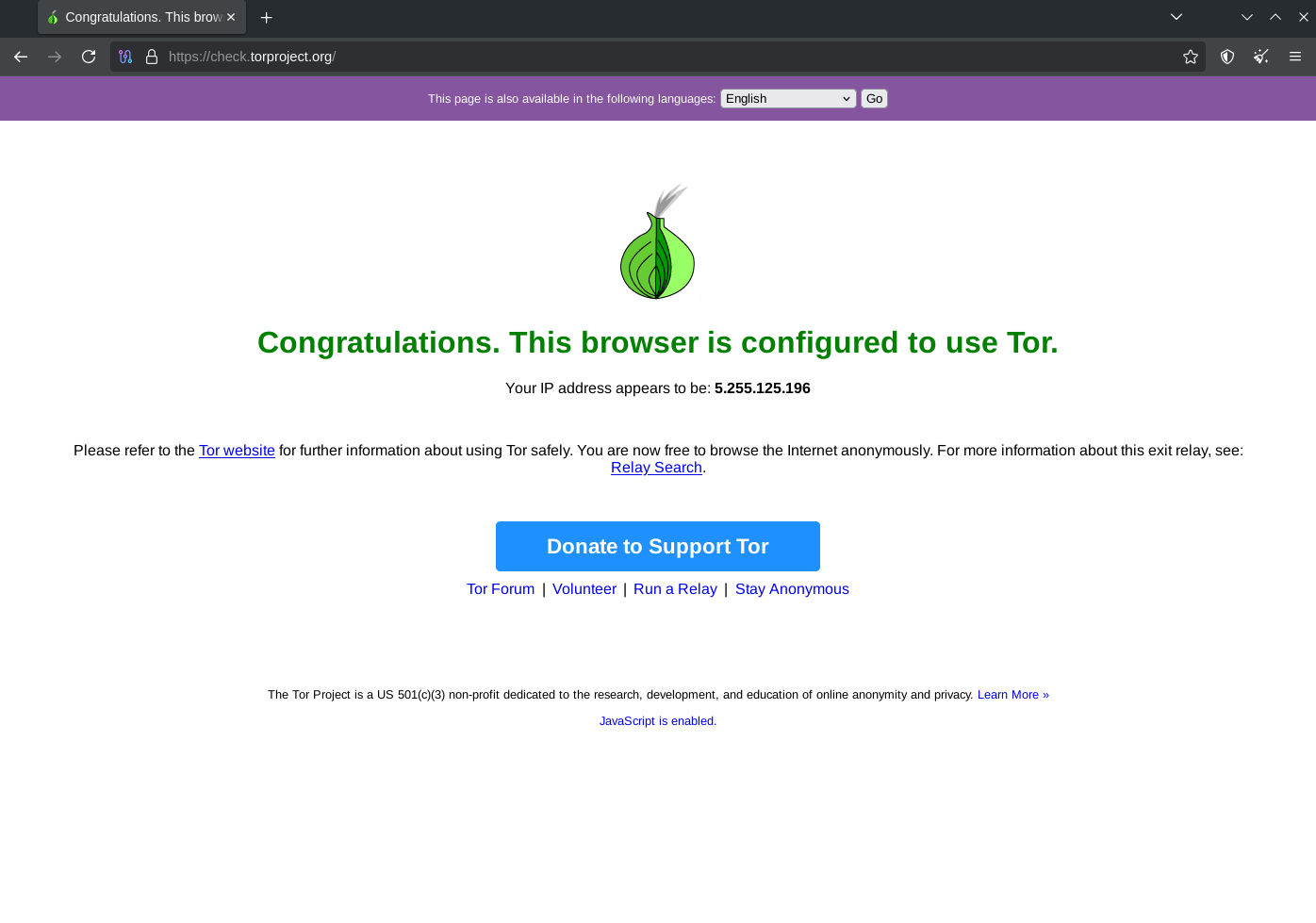
- Visit https://check.torproject.org/
- Should say: “Congratulations. This browser is configured to use Tor.”
- Your IP shown will be a Tor exit relay, not your real IP
Part 3: Configuring Tor Browser
Security Levels
Click the shield icon next to URL bar → Settings:
Standard:
- All features enabled
- JavaScript works everywhere
- Use for: Low-risk browsing, sites that require JS
Safer:
- JavaScript disabled on non-HTTPS sites
- Some fonts and media disabled
- Use for: Most anonymous browsing
Safest:
- JavaScript disabled everywhere
- Many features disabled
- Use for: Maximum security, sensitive activities
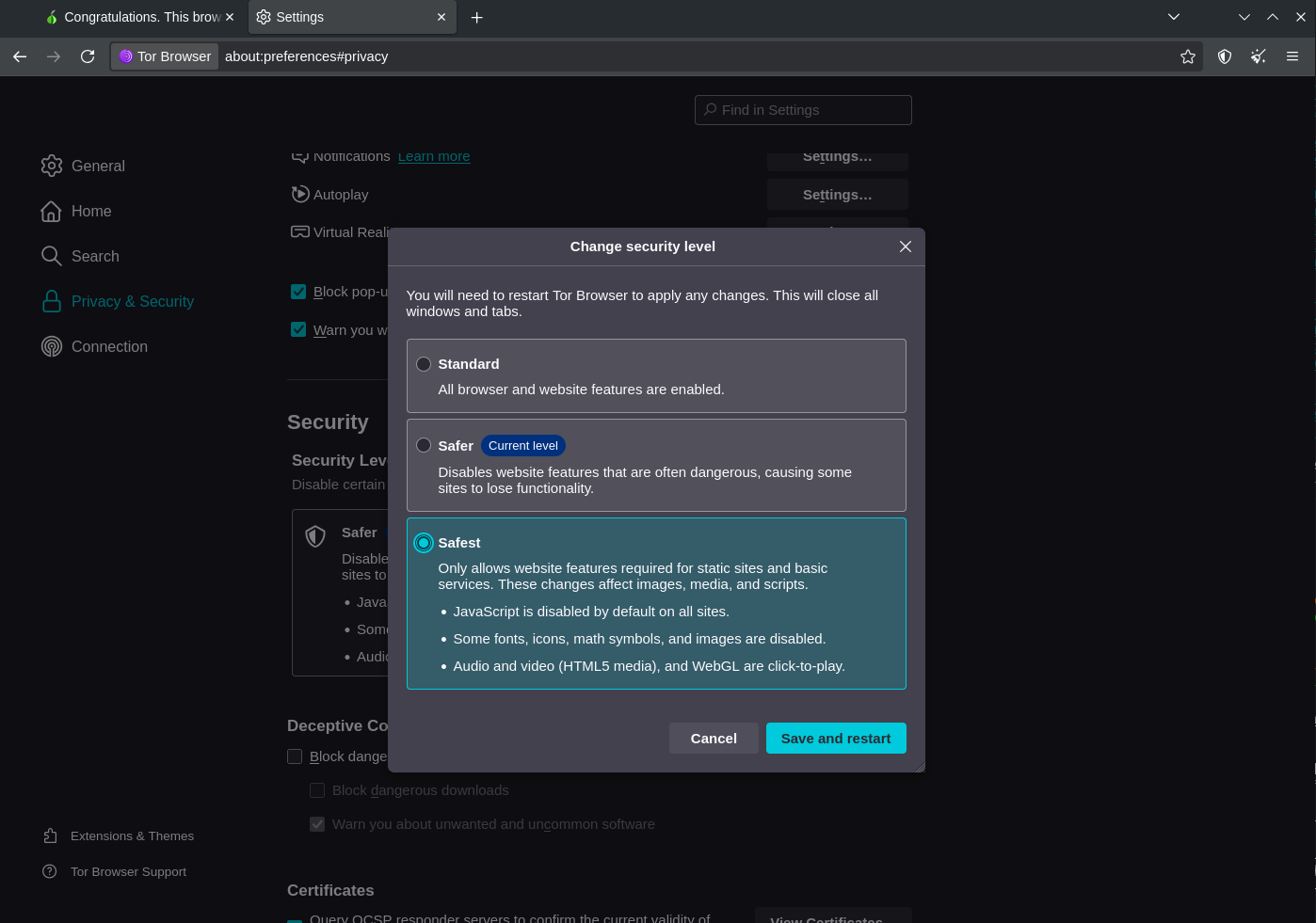
Recommendation: Start with Safer. Switch to Safest for sensitive tasks. Only use Standard when a site absolutely requires JavaScript.
Essential Settings
Check these settings (Hamburger menu → Settings):
Privacy & Security:
- HTTPS-Only Mode: Enable in all windows
- Cookies: Delete when Tor Browser is closed
- History: Never remember history
Connection:
- If you’re in a censored country, configure bridges here
- Otherwise, leave default
NoScript Extension
Tor Browser includes NoScript (pre-configured). The security level controls it:
- Standard = JavaScript enabled
- Safer = JS disabled on HTTP
- Safest = JS disabled everywhere
Generally, let the security level control NoScript rather than manually configuring it.
Part 4: Using Tor Browser Safely
Do’s and Don’ts
Do:
- ✅ Use HTTPS everywhere (exit relays can see HTTP traffic)
- ✅ Keep browser window default size (fingerprinting protection)
- ✅ Use security level “Safer” or higher
- ✅ Let Tor Browser manage Tor (don’t use system Tor)
- ✅ Use “New Identity” to reset all state between activities
Don’t:
- ❌ Maximize the window (letterboxing softens this, but the default size is still the most uniform)
- ❌ Install additional extensions (can fingerprint or leak)
- ❌ Log into personal accounts (links your identity to Tor session)
- ❌ Open downloaded files while online (can reveal IP)
- ❌ Use for torrenting (slow, not anonymous, overwhelms network)
- ❌ Enable Flash or other plugins (disabled for good reason)
New Identity vs New Circuit
New Tor Circuit for this Site (Hamburger menu ≡ → New Tor Circuit for this Site, or Ctrl+Shift+L):
- Changes the exit relay for current site
- Keeps other tabs/state intact
- Use when: Site is slow, need different exit location
New Identity (Hamburger menu → New Identity):
- Closes all tabs
- Clears all state (cookies, logins, cache)
- Builds fresh circuits (new middle and exit relays; your entry guard stays the same on purpose)
- Use when: Starting new activity, switching contexts
Window Size Fingerprinting
Tor Browser opens to a specific default size. This makes all Tor users look similar.
If you maximize or resize, Tor Browser’s letterboxing adds margins around the page so its size still matches a common group.
Leaving the window at its default size is still the simplest choice, and you don’t need to resize it to any particular screen size by hand.
Part 5: Accessing .onion Sites
.onion addresses are only accessible through Tor:
What Are .onion Sites?
- Hosted within the Tor network
- No exit relay needed (end-to-end encryption through Tor)
- True hidden services—even the server’s IP is hidden
- Addresses are long random strings (based on cryptographic keys)
The Safest Way to Find a Site’s Onion: Let the Site Tell You
The most reliable way to reach a site’s .onion is to let the site hand it to you — don’t hunt for onion addresses on the open web; that’s how people land on phishing clones.
Many privacy-respecting sites publish an Onion-Location header. Visit their normal site in Tor Browser and a purple .onion available button appears in the address bar:
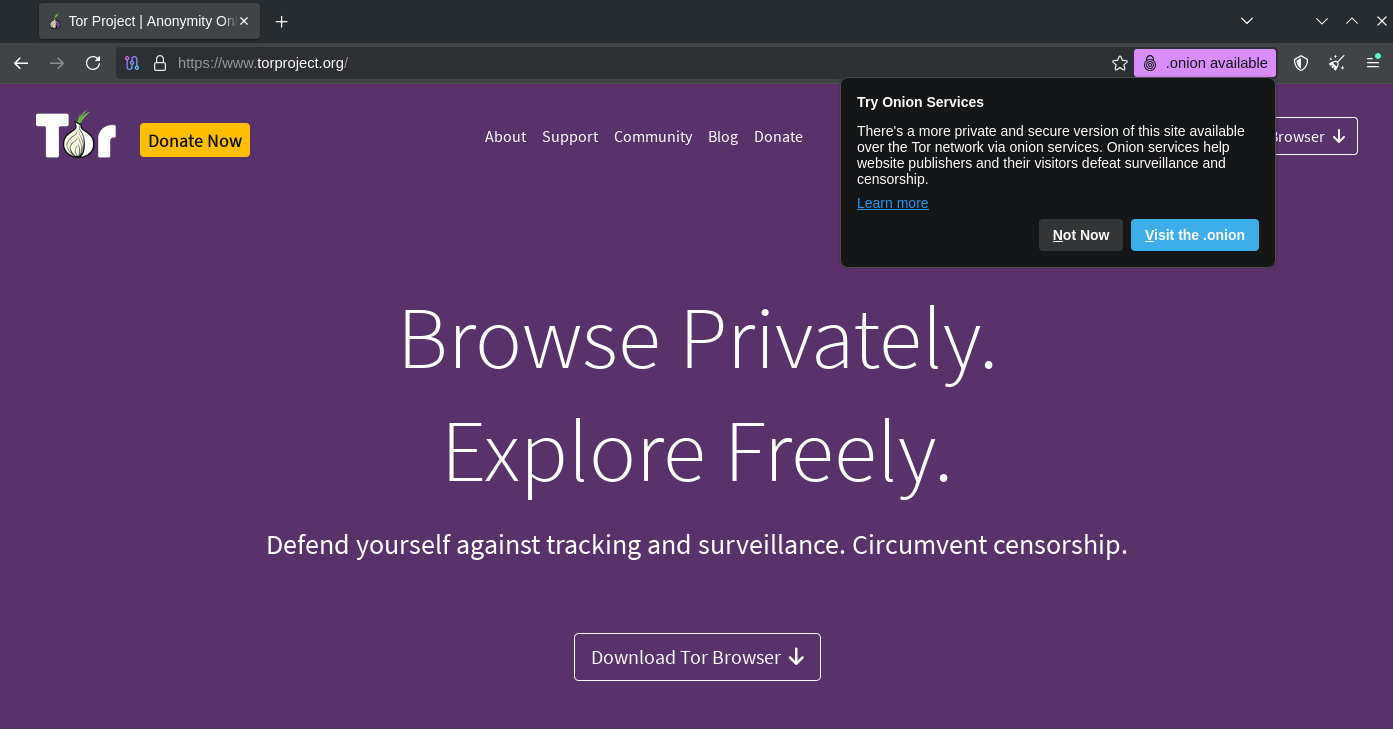
Click it (or Visit the .onion) and Tor Browser redirects you to that operator’s own verified onion service — no copy-pasting, no guessing:
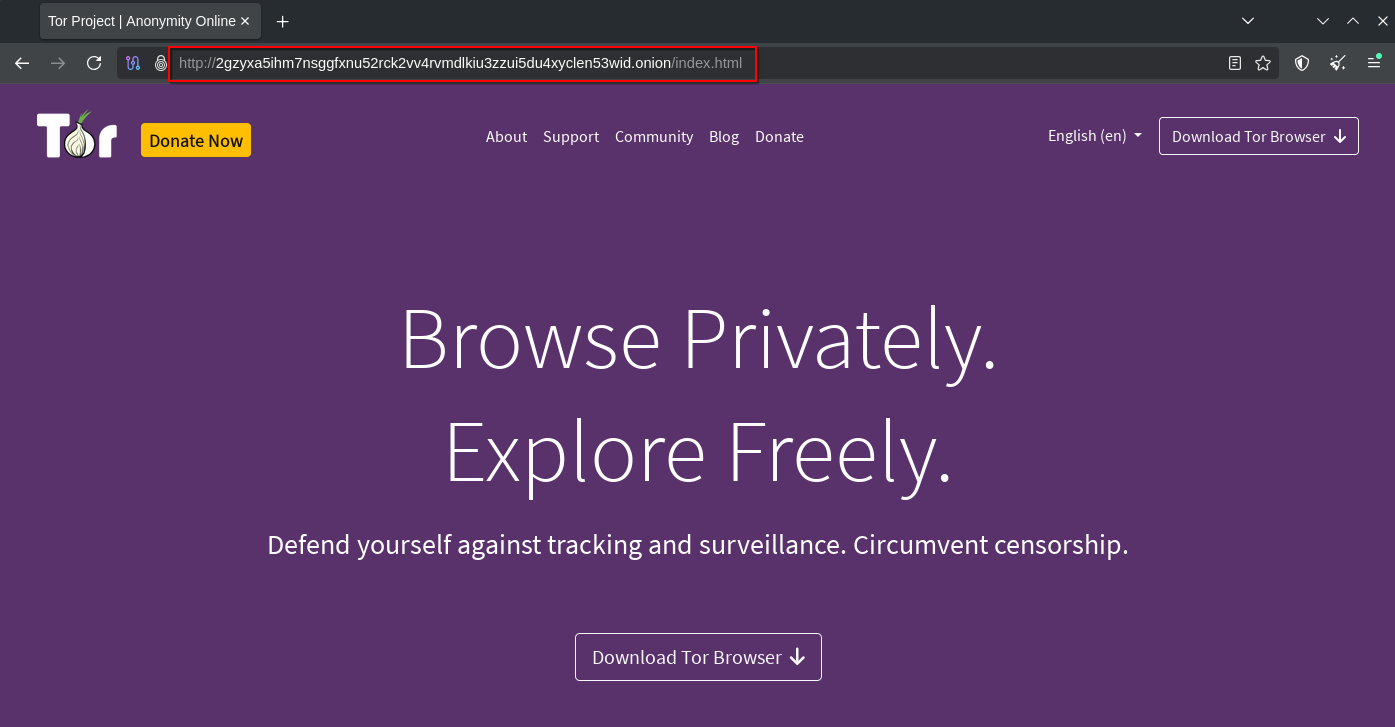
Because the redirect comes from the site itself over an authenticated connection, you know the onion is genuinely theirs — far safer than pasting an onion string you found somewhere, since these addresses are long and random by design, which makes look-alike phishing addresses easy to miss.
Legitimate .onion Sites
Many legitimate services offer .onion versions for enhanced privacy:
Search:
- DuckDuckGo:
https://duckduckgogg42xjoc72x3sjasowoarfbgcmvfimaftt6twagswzczad.onion/
Email:
- ProtonMail:
https://protonmailrmez3lotccipshtkleegetolb73fuirgj7r4o4vfu7ozyd.onion/
News:
- BBC:
https://www.bbcnewsd73hkzno2ini43t4gblxvycyac5aw4gnv7t2rccijh7745uqd.onion/ - New York Times:
https://www.nytimesn7cgmftshazwhfgzm37qxb44r64ytbb2dj3x62d2lljsciiyd.onion/
Social:
- Facebook:
https://www.facebookwkhpilnemxj7asber7w6cknlom23jnbqugr3iwzwg2pxcnqfqd.onion/
Whistleblowing:
- SecureDrop (various organizations have their own)
Benefits of .onion Sites
- No exit relay: Traffic stays entirely within Tor
- End-to-end encryption: No risk of exit relay snooping
- Mutual anonymity: Server doesn’t know your IP, you don’t know server’s IP
- Self-authenticating: Address is derived from cryptographic key
Verifying .onion Addresses
⚠️ Phishing is common. Always get .onion addresses from trusted sources:
- Organization’s official clearnet website
- SecureDrop directory: https://securedrop.org/directory
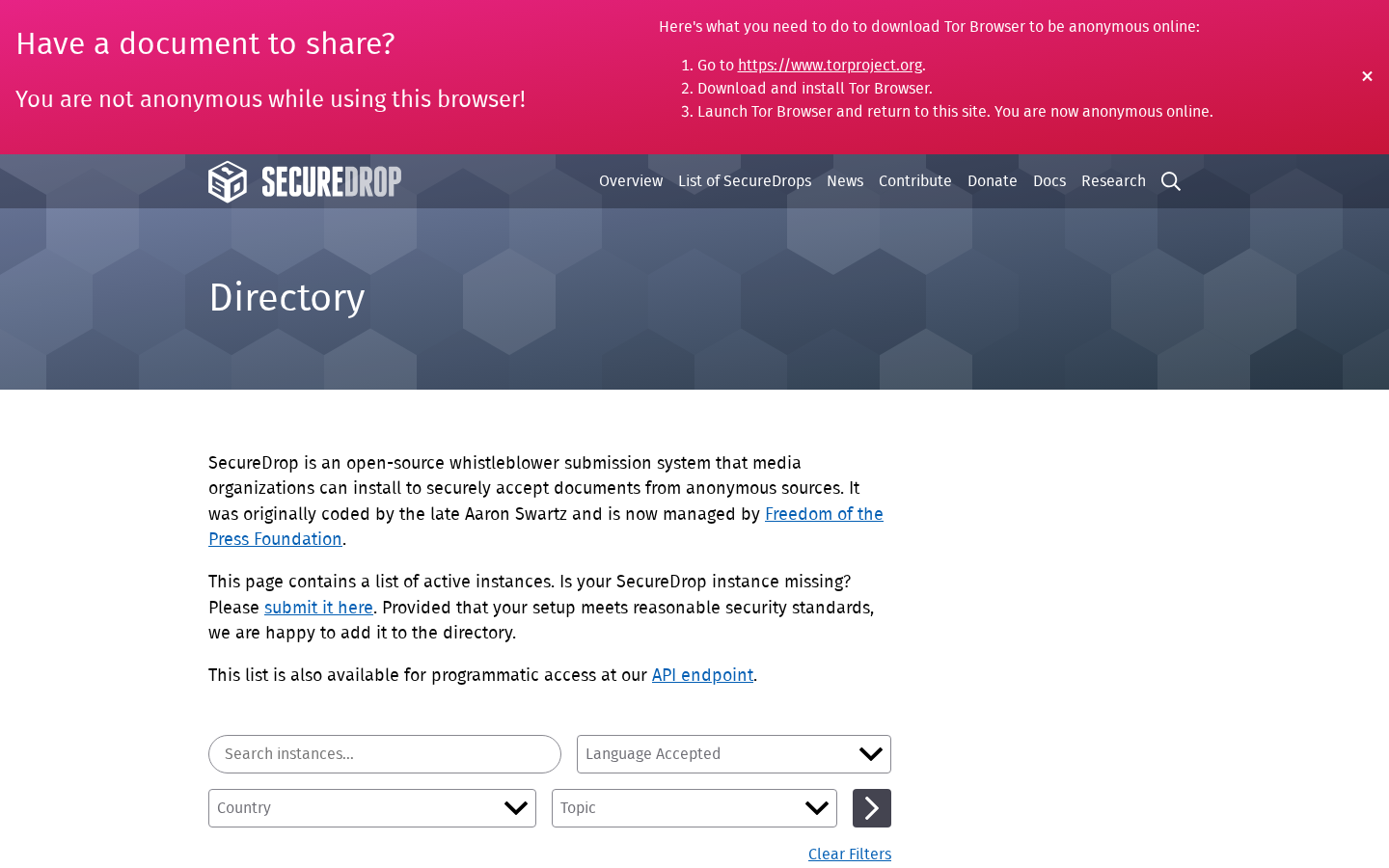
- Verified lists from trusted sources
Never trust .onion addresses from:
- Random internet searches
- Unverified forums
- Direct messages
Part 6: Tor with VPN
Tor over VPN
You → VPN → Tor → Website
What each party sees:
- Your ISP: VPN connection only
- VPN provider: Tor traffic (but not destination)
- Tor entry: VPN IP (not your real IP)
- Website: Tor exit IP
When to use:
- Your ISP blocks Tor
- You don’t want ISP to know you use Tor
- Extra layer of separation
How to do it:
- Connect to VPN first (Mullvad from Week 7)
- Then open Tor Browser
VPN over Tor
You → Tor → VPN → Website
More complex setup. Use when:
- Need to access sites that block Tor
- Need consistent IP for logged-in sessions
Requires special configuration. Not recommended for beginners.
Neither (Tor Only)
For most anonymous activities, Tor Browser alone is recommended:
- Adding VPN adds trusted party
- Adds complexity without clear benefit for most users
- Tor was designed to work alone
Privacy Checkpoint
You now have both VPN and Tor for different threat levels:
What changed:
- Tor Browser installed and configured
- You understand when to use Tor vs VPN
- Access to .onion sites available
- Maximum anonymity option ready
What you gained:
- True anonymity when needed (Tor)
- No single party sees full picture
- Access to hidden services
- Censorship circumvention capability
What you traded:
- Speed (Tor is slow by design)
- Convenience (many sites block Tor)
- Some functionality (JavaScript often disabled)
When to use what:
- Daily browsing: VPN (Week 7)
- Sensitive research: Tor
- Maximum anonymity: Tor with Safest level
- Censored environment: Tor with bridges
Troubleshooting
Tor Browser won’t connect
Try:
- Wait a moment—initial connection can be slow
- Click “Tor Network Settings” and try connecting again
- If in censored country, configure bridges
- Check your internet connection works without Tor
- Restart Tor Browser
Tor is extremely slow
Normal behavior. Traffic routes through 3 relays worldwide.
Improve slightly:
- Try “New Tor Circuit for this Site” (hamburger menu ≡, or Ctrl+Shift+L)
- Accept that Tor is slow by design
- Use VPN for non-sensitive tasks
- Close other tabs (each site uses different circuit)
Website won’t load or blocks Tor
Solutions:
- Try “New Identity” for fresh circuit
- Some sites intentionally block Tor exit IPs
- Check if site has .onion version
- Accept that not all sites work with Tor
“Something Went Wrong” page
Common causes:
- JavaScript required but disabled (try Standard security)
- Site blocks Tor exits
- Network issues—try New Identity
- Site is actually down
Captchas everywhere
Many sites show captchas to Tor users because:
- Exit IPs are shared by many users
- Abuse comes from Tor exits
Solutions:
- Complete the captcha
- Try different site
- Try New Identity for different exit
Going Further (Optional)
Tor Bridges
If Tor is blocked in your country, use bridges:
- Tor Browser → Connection Settings
- Select “Use a bridge”
- Options:
- Built-in bridges (obfs4)
- Request bridge from torproject.org
- Enter custom bridges
Bridges are unlisted entry points, harder to block.
Tails OS
Tails (The Amnesic Incognito Live System):
- Complete OS designed for anonymity
- Boots from USB drive
- Routes all traffic through Tor
- Leaves no trace on host computer
- Includes built-in security tools
Use for: High-risk activities, extreme threat models
Website: https://tails.net/
Whonix
Whonix runs Tor in a dedicated VM:
- Tor traffic isolated in separate VM
- Even malware can’t leak your real IP
- More complex setup than Tails
- For long-term anonymous work
Website: https://www.whonix.org/
Running a Tor Relay
Support the Tor network by running a relay:
- Guard/Middle relay: Safe, helps network
- Exit relay: More complex legally
- Requires stable internet and bandwidth
Guide: https://community.torproject.org/relay/
What’s Next
You now have a VPN for daily privacy and Tor for when you need anonymity. Next, we move from network traffic to the data stored on your computer, and protect it with encryption.
Week 9 covers encrypted storage with VeraCrypt, LUKS, and Cryptomator.
Summary
This week you:
- Understood how Tor provides anonymity through onion routing
- Installed and configured Tor Browser
- Learned the security levels and when to use each
- Practiced safe Tor browsing habits
- Learned to access .onion sites
- Understood when to use Tor vs VPN
You can now browse anonymously when you need to. Tor Browser sits alongside the VPN from Week 7, the encrypted messaging from Week 6, and the hardened browser from Week 3.
💻 Ready for the command line? Cypherpunk 101 covers Tor with terminal tools and deeper control—onion routing internals, bridges, relays, and SSH-over-Tor: Cypherpunk 101 Week 7: Tor & Onion Routing →